Team Cloud Usage
Overview
This guide walks you through the steps to monitor your team's cloud model usage and consumption costs in NaviGator AI Toolkit.
Prerequisites
- Valid team credentials
- Team admin-level access to view team-specific usage data
Step 1: Log In to NaviGator AI Toolkit
Open NaviGator AI Toolkit by going to https://api.ai.it.ufl.edu/ui

Step 2: Navigate to the Usage Section
Once logged in, locate and click on the Usage option from the main
navigation menu on the dashboard.

Step 3: Select the Usage View
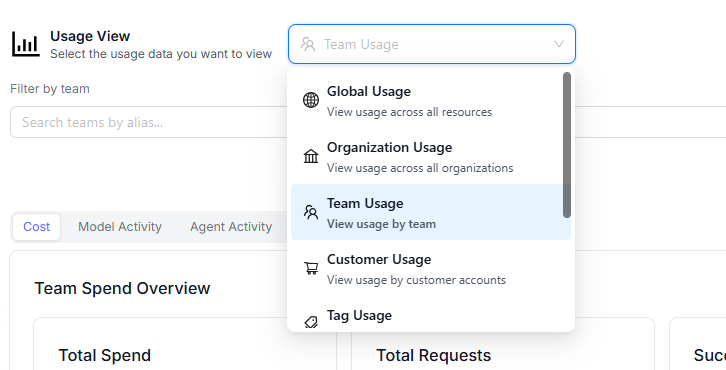
Inside the Usage section, you will see a dropdown menu called Usage View. Click on the dropdown.
Step 4: Select Team Usage
After selecting Usage View, you will see the option Team Usage below the dropdown. Click on it to switch the view to team-level data.
Step 5: Filter by Your Team Name
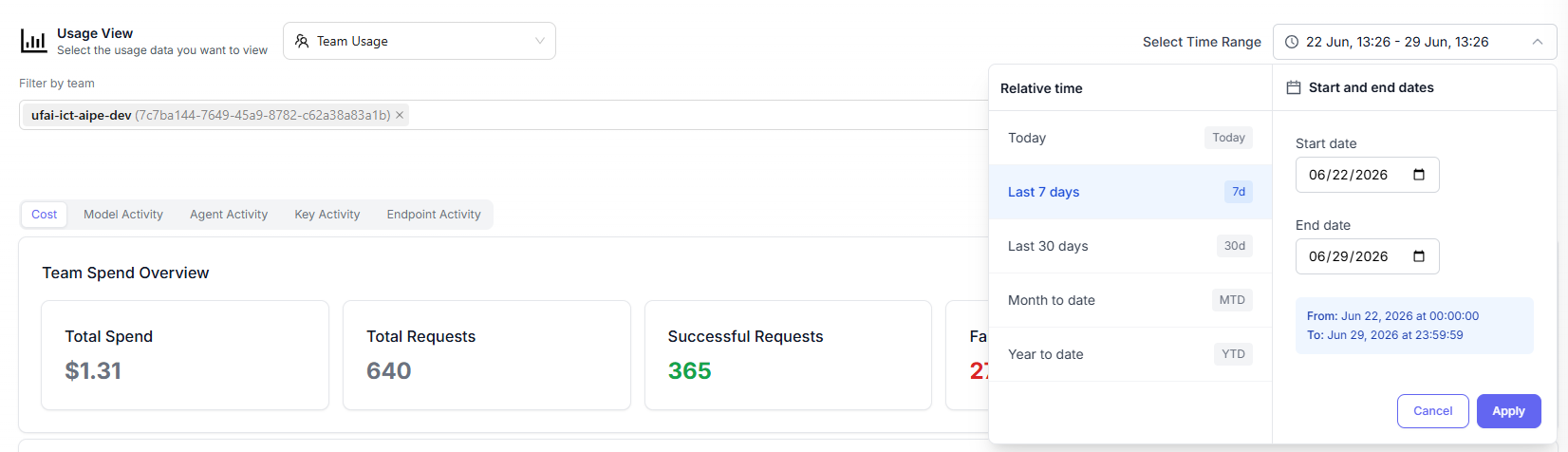
Below the Usage View section, you will find a Filter by Team selection box. Type your team name in the search box to filter and display data specific to your team.

Step 6: Set the Time Period
In the top right corner of the page, you will find the Time Range selector. Use this to define the date range for which you want to review usage — select your desired start date and end date.
Step 7: Review Your Usage Data
Once you have selected the team and time period, the usage data will load below. You can review the following metrics:
| Metric | Description | UI View |
|---|---|---|
| Cost | Total cost your team has spent on cloud model usage within the selected time period |  |
| Model Activity | Activity and consumption broken down by each model used by the team |  |
| Key Activity | How API keys are being utilized within the team | 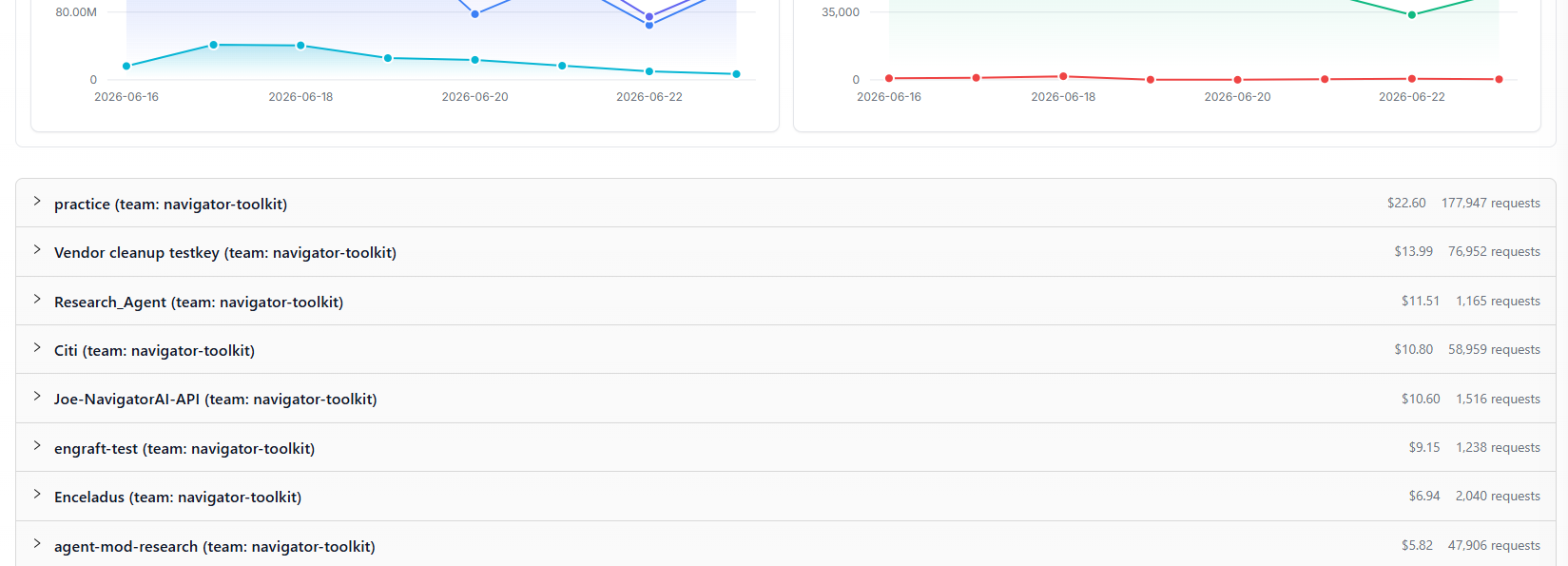 |
| Endpoint Activity | Which endpoints have been accessed and how frequently | 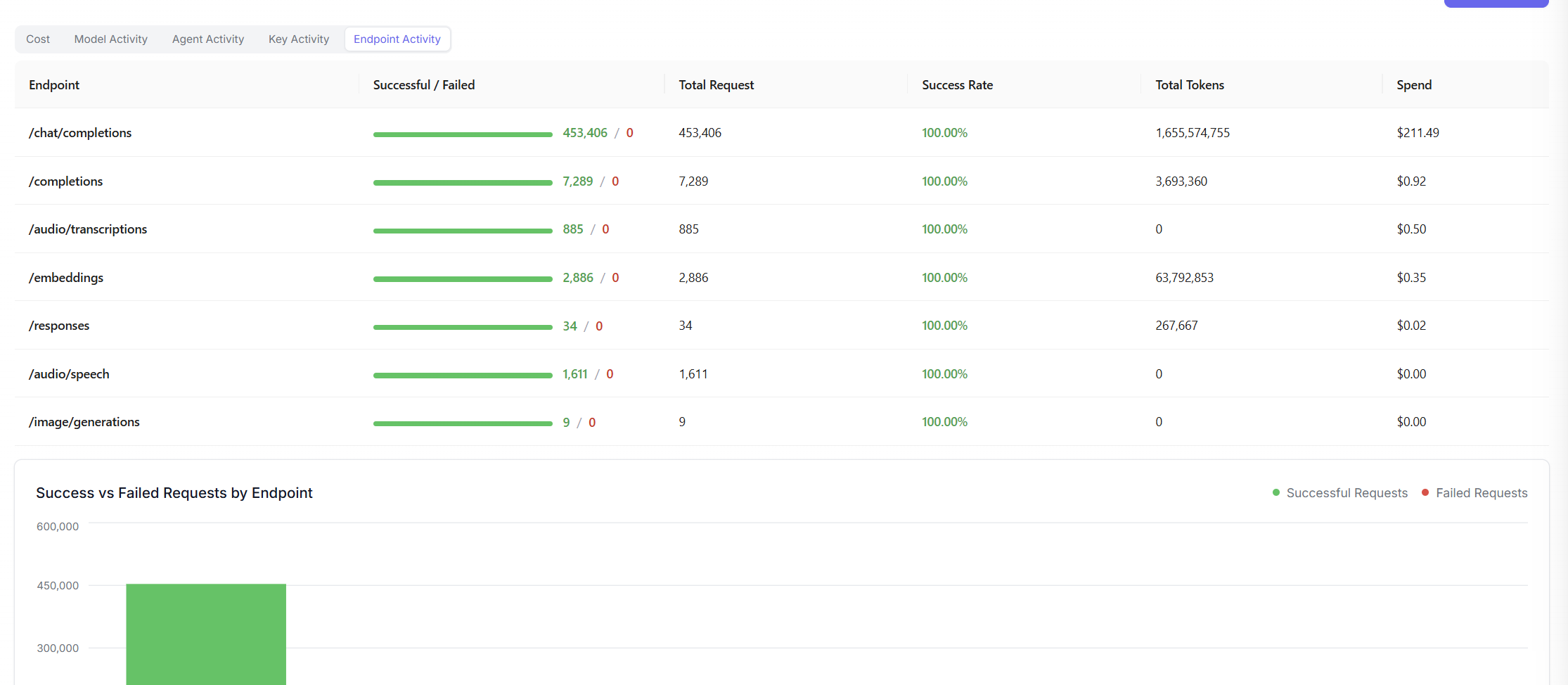 |
Summary
By following the steps above, your team can easily track and monitor cloud usage, costs, and activity within NaviGator AI Toolkit. Regularly reviewing this data helps teams stay within budget and identify any unusual usage patterns.