Overview
Injecting Context
The Chat interface allows you to communicate with an LLM of your choosing. Select the + icon on the bottom left of the chat input to inject additional context into your query-- the LLM will consider this data when generating its response:
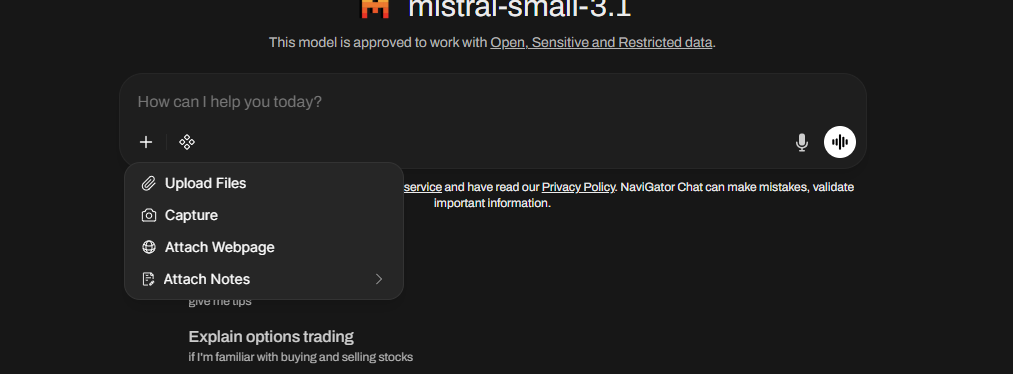
A pop-up will appear giving you the options to:
- Upload Files: upload a collection of local files into your query context
- Capture: upload a screen-capture as an image into your query context
- Attach Webpage: add a webpage into your query context
- Notes: add a Note into your query context
Using Tools
The following tools are available for use by Chat's internal agent by clicking on Integrations:
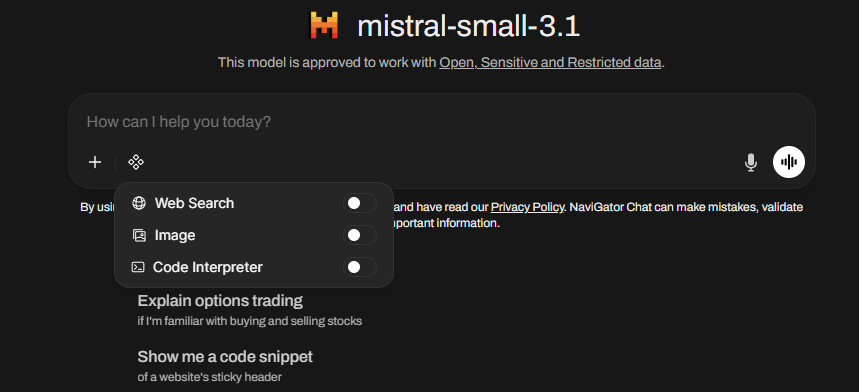
- Web Search: search the web for up-to-date and relevant information
- Image: generate an image based off your query
- Code Interpreter: ask the LLM to generate code based on your query
Voice
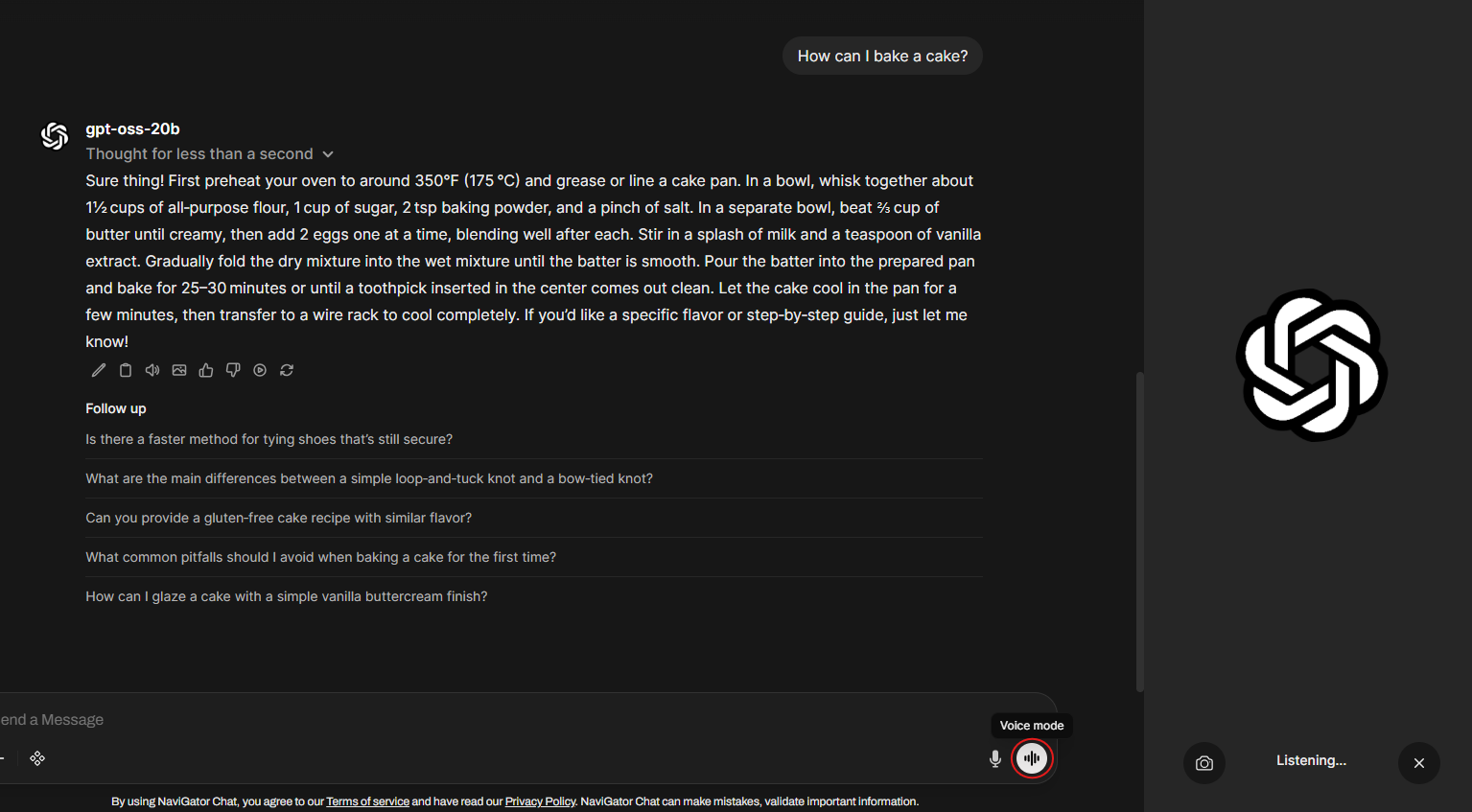
Dictate spoken words by clicking on the speaker icon on the bottom right of the chat input:

Have a spoken conversation with an LLM of your choosing by clicking Voice mode on the bottom right of the chat input: