Notes
The Notes feature in Chat provides a dedicated workspace for content creation and knowledge management. While normal chats within Chat preserves your linear conversations, Notes allow you to curate specific content, such as long-form drafts or coding cheatsheets that exists independently of any single conversation. These notes can be written and enhanced using your LLMs and seamlessly injected into new chats as context.
Notes Landing Page
Click on Notes on the left sidebar to access the Notes landing page-- from here you can see your collection of notes:

Click on the ellipses of a particular note to Download, Share, or Delete the note. Click on the note to access the Note Editor
Note Editor
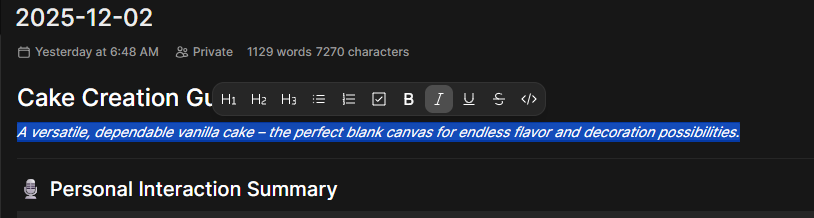
Within the Note Editor clicking on an empty space, highlighting or double-clicking existing text summons a toolbar to apply styling options:
Click the Microphone icon (bottom left) to dictate text directly into the note using speech-to-text.
AI Integration
LLMs are directly integrated with your notes, turning the editor into an AI-assisted workspace. Click the AI (Sparkle/Star) button at the bottom right of the screen to access these features:

The Enhance feature allows you to use AI as an in-place editor.
- Highlight a specific section of text (or select nothing to target the whole note).
- Click Enhance.
- The LLM (selected in the Note's Controls) will rewrite your text directly in the editor with enhancement in mind.
The Chat button opens a dedicated sidebar conversation focused specifically on the note's content. This is a "Chat with Data" mode.
- You can ask the AI to summarize the note, extract specific data, or critique your writing.
- Edit Toggle: Inside the chat sidebar, there is an Edit toggle. This allows you to manually modify the highlighted context sent to the LLM before you press send, giving you granular control over the query.
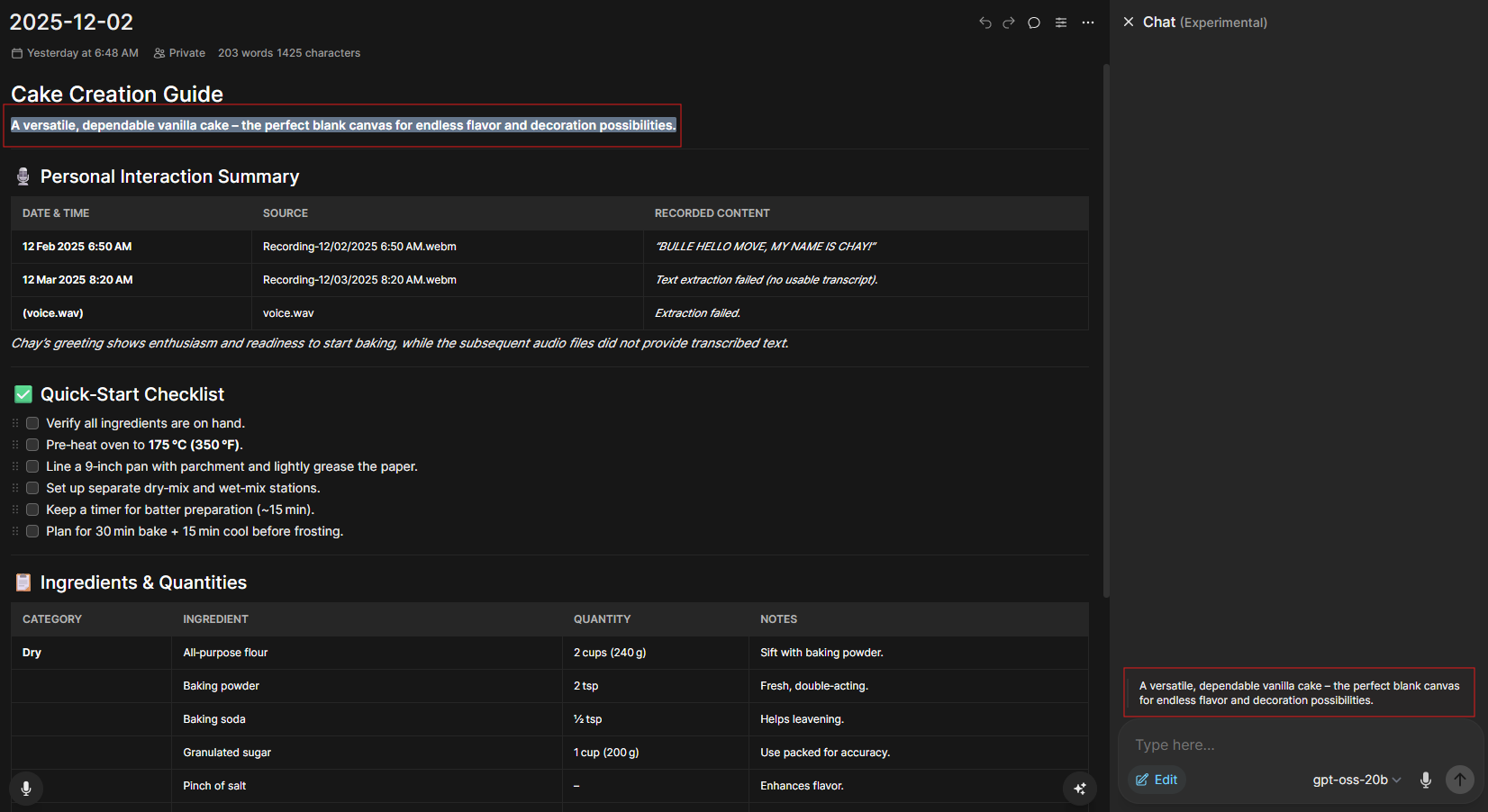
The Undo/Redo arrows (top right) track all changes. Crucially, this includes changes made by the AI. If the Enhance feature produces a result you dislike, you can simply click Undo to revert to your original text.
Using Notes in Chat
You can inject the content of your Notes into standard chat sessions to provide context to the AI.
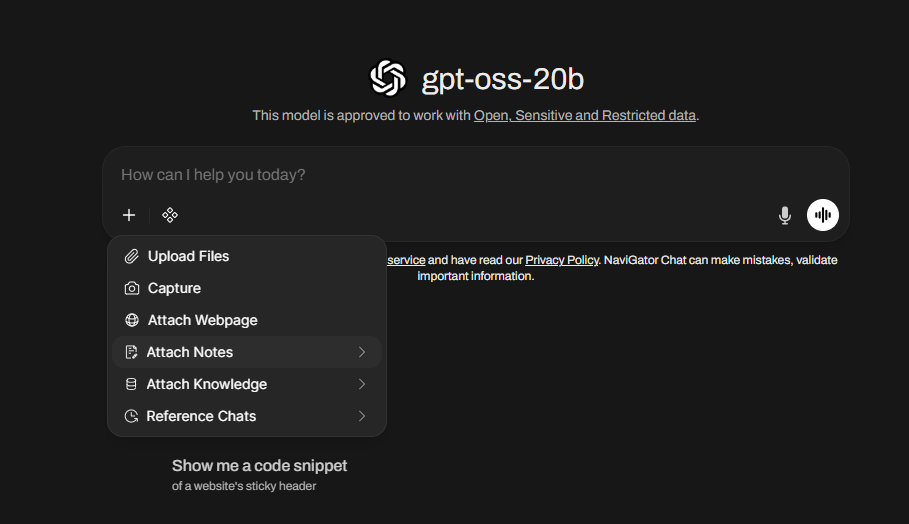
How to Attach a Note
- Go to the main Chat Input bar.
- Click the + (More) button.
- Select Attach Notes.
- Choose the desired note(s) from the list.
The full content of the note will be loaded into the context window for that conversation.
Limitations
Context Window Usage
Because attaching a Note injects the full text into the chat:
- If you have a very large note (e.g., 10,000 words) and attach it to a model with a small context window (e.g., 8k tokens), the model may run out of memory or "forget" the beginning of your conversation.
References
- Open WebUI https://docs.openwebui.com/features/notes